©TransmediaFox 2021. All Rights Reserved.

©TransmediaFox 2021. All Rights Reserved.
Step-by-step for Microsoft Outlook 365
Step-by-step for Microsoft Outlook 365
This section will take you through a step-by-step guide on how-to set up your Email Account on Microsoft Outlook 365. Again, the configuration is very similar to Microsoft Outlook 2016/2019, with minor UI differences.
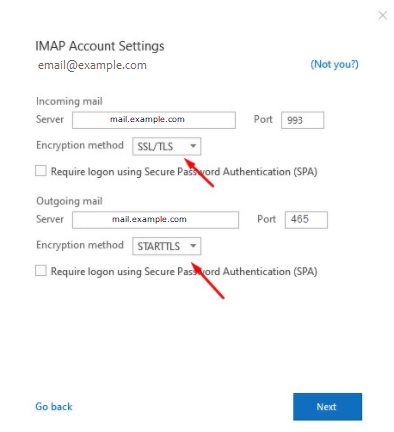
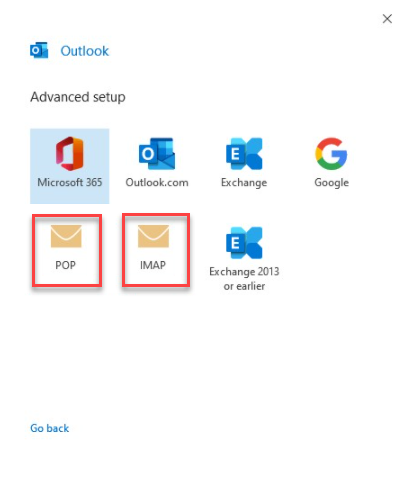
NOTE: We will be configuring the email account using SSL Hostnames for SMTP and IMAP protocols.

Step-by-step for Microsoft Outlook 365
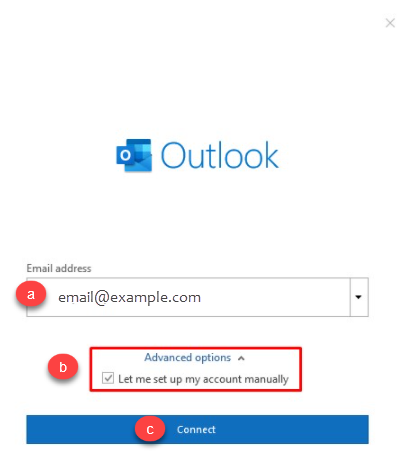
a. Enter your Email Address.
b. Check the box that reads, Let me set up my account manually.
c. Click on Connect.
| SSL Email Port Settings | ||
| Outgoing Server SMTP | smtp.domainname.com | Port 26/587 |
| Incoming Server IMAP | imap.domainname.com | Port 993 |
| Incoming Server POP | pop.domainname.com | Port 995 |
| Non-SSL Email Port Settings | ||
| Outgoing Server SMTP | mail.domainname.com | Port 25/587 |
| Incoming Server IMAP | mail.domainname.com | Port 143 |
| Incoming Server POP | mail.domainname.com | Port 110 |
Note: The domainname.com in the above example needs to be replaced with your actual domain name.